
Introduction
An unsubscribe link allows recipients to opt out when they no longer want to receive your emails. Every marketing email must include a clear and accessible unsubscribe link. This is required for compliance and also helps protect your sender reputation by giving recipients an easy way to unsubscribe instead of marking your emails as spam.
Marketing and transactional emails
Unsubscribe requirements can differ depending on the type of email you send.
-
Marketing emails
Marketing emails, such as newsletters, promotional campaigns, product updates, and other bulk emails, must include a clear unsubscribe link. This applies to both B2B and B2C contact lists. -
Transactional emails
Transactional emails, such as order confirmations, password resets, invoices, or account-related notifications, may not always require an unsubscribe link because they are usually necessary for the recipient.
Unsubscribe links in Mailjet marketing templates
When you create a marketing template with Mailjet’s Email Editor, an unsubscribe link is automatically added to the footer.
By default, this link uses an unsubscribe variable. The variable determines the language of the unsubscribe and confirmation pages shown to your recipients. This language is based on your campaign language settings, which use your account language by default.
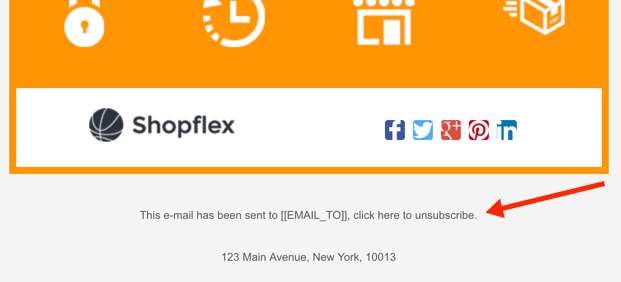
Customizing the unsubscribe link in the Email Editor
You can customize the footer text and design while keeping the unsubscribe link active. There are two main options:
-
Change the campaign language
In your campaign settings, select the language you want to use. After saving, the unsubscribe link and related pages will automatically use the selected language. -
Manually replace the unsubscribe variable
Click the unsubscribe link in the footer and replace the existing variable with the locale you want to use.
Mailjet supports the following unsubscribe variables:
| English | [[UNSUB_LINK_EN]] |
| Français | [[UNSUB_LINK_FR]] |
| Dansk | [[UNSUB_LINK_DA]] |
| Deutsch | [[UNSUB_LINK_DE]] |
| Español | [[UNSUB_LINK_ES]] |
| Nederlands | [[UNSUB_LINK_NL]] |
| Italiano | [[UNSUB_LINK_IT]] |
| Svenska | [[UNSUB_LINK_SV]] |
| Português | [[UNSUB_LINK_PT]] |
| Русский | [[UNSUB_LINK_RU]] |
| 日本語 | [[UNSUB_LINK_JA]] |
| Latviešu | [[UNSUB_LINK_LV]] |
| Íslenska | [[UNSUB_LINK_IS]] |
| Română | [[UNSUB_LINK_RO]] |
| Ελληνικά | [[UNSUB_LINK_EL]] |
| العربية | [[UNSUB_LINK_AR]] |
| Slovenčina | [[UNSUB_LINK_SK]] |
| Čeština | [[UNSUB_LINK_CS]] |
| Polski | [[UNSUB_LINK_PL]] |
| 中文 | [[UNSUB_LINK_ZH]] |
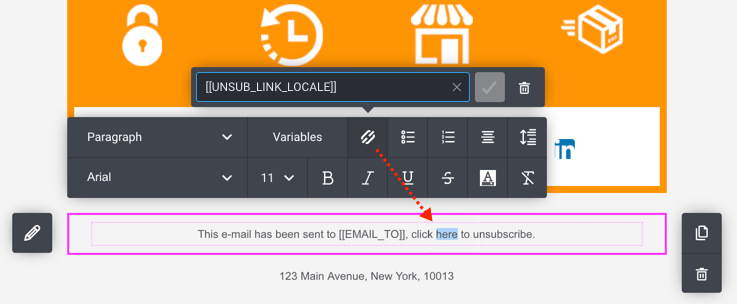
Adding an unsubscribe link manually
If you are creating your email outside the Email Editor, you need to add an unsubscribe link manually.
-
HTML editor
Add the unsubscribe variable as a hyperlink in your HTML code:<a href="[[UNSUB_LINK_EN]]">Unsubscribe</a> -
SMTP Relay
Add the unsubscribe variable directly in your email body:[[UNSUB_LINK_EN]]
Managing unsubscribes for SMTP emails
When sending through Mailjet’s magic list, for example xxxx@lists.mailjet.com, unsubscribe requests are automatically applied to the related contact list.
If you send emails through SMTP without using the magic list, unsubscribe activity will still appear in your statistics. However, you are responsible for managing those unsubscribe requests and updating your contact list accordingly.
List-unsubscribe and one-click unsubscribe
Some inbox providers, including Gmail, may display their own unsubscribe option at the top of an email. This is commonly known as list-unsubscribe or one-click unsubscribe.
This option makes it easier for recipients to unsubscribe directly from their inbox. However, it does not replace the need to include a visible unsubscribe link in the body or footer of your marketing emails.